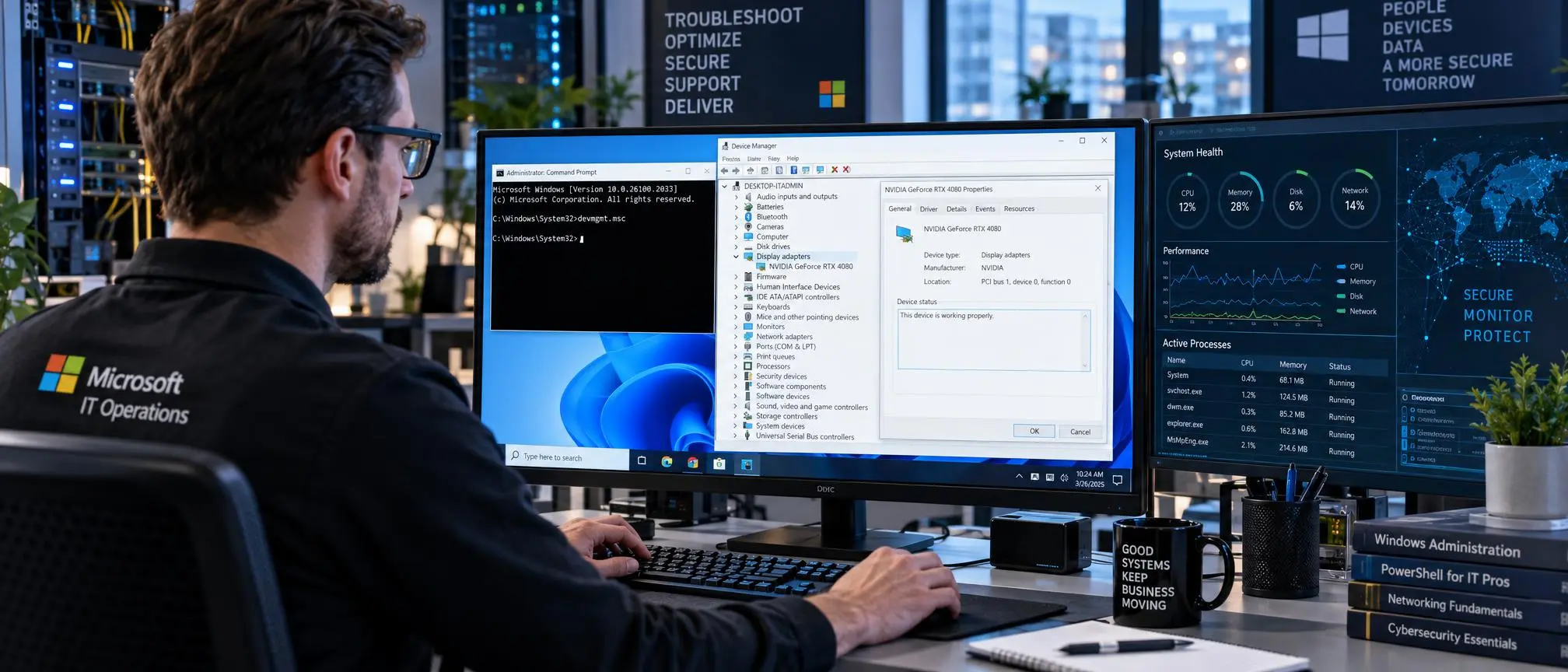

Most experienced computer users/IT professionals will launch the Device Manager CMD through the command prompt, rather than through searching on the bottom-right corner of the Windows desktop, or through the control panel.
Furthermore, by using the device manager command line tools available through command prompt, you can view the devices installed on your computer, as well as determine the specifications of your hardware and resolve problems with it.
If you know which command-line switches to apply when diagnosing and resolving problems with installing drivers, malfunctioning hardware devices, and/or misconfiguring the system, you can quickly resolve these types of issues and dramatically decrease the amount of time needed to maintain your Windows-based environment.
The objective of writing this document was threefold: To explain what the Device Manager program is designed to do; To describe the process for starting the Device Manager from the Command Prompt (CMD); To present some of the most frequently used CMD commands for interacting with the Device Manager; And to illustrate how utilizing CMD-based tools can help users manage the hardware components of their computers.
What Is Device Manager in Windows?
The integrated Windows tool called “Device Manager” allows computer users to view and control every hardware component connected to their computer.
It displays information about components such as:
- Graphics cards
- Network adapters
- Printers
- Audio devices
- USB controllers
- Storage devices
- Processors
- Monitors
With Device Manager, you can update your drivers, turn off a specific device, remove hardware attached to your PC, and find out if a device is working properly.
When you are experiencing problems with your computer’s devices, Device Manager will provide you with either an explanation of the issue (warning symbol) or a description of the error (error message).
The “Device Manager” Command Line (cmd) allows you to locate and access the Device Manager faster than by searching through the different menus within Windows.
How to Open Device Manager Using CMD
Open Device Manager by using the run command in command prompt.
Follow these steps:
- Press Windows + R on your keyboard.
- Type cmd.
- Press Enter to open Command Prompt.
- Enter the following command:
- devmgmt.msc
- Press Enter.
Windows will immediately launch Device Manager.
The method of running Device Manager using Command Line (CMD) that is most frequently used is described below, since it can be done on almost all versions of Windows that have been released recently including Windows 10 and Windows 11.
Alternative Commands to Open Device Manager
In addition to the primary method for accessing hardware management tools, Windows also provides additional methods for doing so.
Using Run Command
You can directly open Device Manager by pressing:
Windows + R
Then type:
devmgmt.msc
This method does not require opening Command Prompt first.
Using PowerShell
PowerShell can also launch Device Manager.
Open PowerShell and type:
devmgmt.msc
The system will open the same Device Manager interface.
Using Task Manager
Another method is:
Open Task Manager.
Click File.
Select Run New Task.
Enter:
devmgmt.msc
Click OK.
This is useful when Windows Explorer is not responding.
Why Use Device Manager CMD Commands?
Many people are curious about why they would want to use commands rather than navigate through Windows menus.
There are several advantages.
Faster Access
The biggest benefit of using device manager cmd commands is speed.
As a result, by opening Device Manager, users can skip the navigation to several settings pages
This is especially useful for technicians who troubleshoot multiple computers.
Useful for Remote Troubleshooting
IT administrators often manage computers remotely.
Professionals are able to efficiently utilize the computer’s system tools using command-based methods, rather than taking a great deal of time looking for those same tools in various menus.
Better Workflow Automation
System administrators can include commands in scripts and maintenance processes.
This helps automate repetitive tasks and improves efficiency.
Useful Device Management Commands in Windows
In addition to the “device manager cmd” which generally opens Device Manager, there are other commands that provide users with the ability to manage their computer’s hardware.
Device Console (PnPUtil)
Windows includes the PnPUtil command-line utility.
It allows users to manage drivers and devices.
Example:
pnputil /enum-devices
This command displays connected devices.
If you want to manage hardware drivers programmatically without opening the graphical interface, you can also enable and disable device drivers via command line using built-in Windows tools like PnPUtil.
Viewing System Information
The following command provides hardware details:
systeminfo
It displays information about:
- Operating system version
- Installed updates
- System specifications
Checking Drivers
To view driver information:
driverquery
This command shows installed drivers and their details.
Scanning Hardware Changes
Inside Device Manager, users can scan for hardware changes.
This helps Windows detect newly connected devices.
How Device Manager CMD Helps With Driver Problems
Driver issues are among the most common Windows problems.
A faulty or outdated driver can cause:
- Hardware not working
- Poor performance
- Connection problems
- System errors
Using Device Manager Command Line Techniques will allow you to quickly gain access to Driver Management Options.
After opening Device Manager, users can:
- Update drivers
- Roll back drivers
- Uninstall drivers
- Disable problematic devices
Keeping drivers updated improves system stability and hardware performance.
Fixes for Common Device Manager When Manager Errors
Device Not Recognized
In some cases, hardware connected to the computer cannot be recognized by Windows.
Possible solutions:
- Restart the computer
- Run hardware detection
- Update drivers
- Check USB connections
Missing Driver
If there is a warning icon for the device, it may not have a driver.
Users can:
- Open Device Manager.
- Right-click the device.
- Select Update Driver.
- Search automatically.
Device Disabled
In some cases user devices could inadvertently be disabled.
To fix this:
- Open Device Manager.
- Find the device.
- Select Enable Device.
Device Manager CMD for IT Professionals
Professional IT workers typically utilize the command line to complete tasks more rapidly and flexibly.
A technician managing multiple computers can use commands to:
- Quickly access system utilities
- Check hardware information
- Diagnose problems
- Manage drivers
The device manager based on the command line is especially effective for organizations with a high degree of scale, where there is a need for quick and uniform operating procedures.
Device Manager CMD vs Traditional Method
Both ways of launching the same utility on Windows have some advantages depending upon when they are used.
Traditional Method
Advantages:
- Easy for beginners
- Visual navigation
- No command knowledge required
Command Method
Advantages:
- Faster
- Easier for professionals
- Works well with automation
- Useful during troubleshooting
While many computer users would find both approaches equally helpful, learning how to employ the command line in Device Manager Command Prompt can improve your capacity to diagnose and repair issues that occur with Windows.
Tips for Using Device Manager Safely
Before changing hardware settings, keep these tips in mind:
- Do not uninstall unknown devices.
- Create a system restore point before major changes.
- Download drivers from trusted sources.
- Avoid disabling important system components.
- Check device information before making changes.
Users should always know what they’re changing because incorrect driver changes can cause more problems.
Future of Command-Based Windows Management
Even though Windows is continually adding more graphics-based tools, there are still many instances where you will need to use a command line tool.
Professionals still use CMD and PowerShell because they provide:
- Better control
- Faster administration
- Automation possibilities
Learning to use the different methods of accessing the device manager via cmd (command line) will help you feel more comfortable using cmd for other Windows troubleshooting tasks.
Conclusion
Understanding Device Manager command line techniques provides a faster and more efficient way to manage Windows hardware.
The command:
devmgmt.msc
provides immediate access to the device manager, which allows you to manage your drivers, hardware devices, and help with troubleshooting.
No matter if you have no experience with fixing computers, or are a professional in the field of information technology responsible for maintaining systems, using the command line based tools of Windows can increase your productivity and help save you valuable time.
These simple commands will help you when working with Windows computers.
Frequently Asked Questions (FAQs)
What is the Device Manager CMD command?
The main device manager cmd command is:
devmgmt.msc
It opens Device Manager directly in Windows.
How do I open Device Manager from Command Prompt?
Open CMD, type:
devmgmt.msc
and press Enter.
Does Device Manager CMD work on Windows 11?
Yes, the command can be run on all current Windows operating systems (i.e. Windows 11, Windows 10) as well as older versions.
Can I manage drivers using CMD?
Yes, there are a number of tools available within Windows that allow you to manage and view your drivers such as PnPUtil and DriverQuery.
Is using Device Manager CMD safe?
You can safely open device manager using cmd. Users need to be cautious about modifying their hardware configuration.
Why should IT professionals use Device Manager CMD?
Professionals in Information Technology (IT) utilize command-based methods for their faster access, simpler troubleshooting, and improved capabilities for automation.