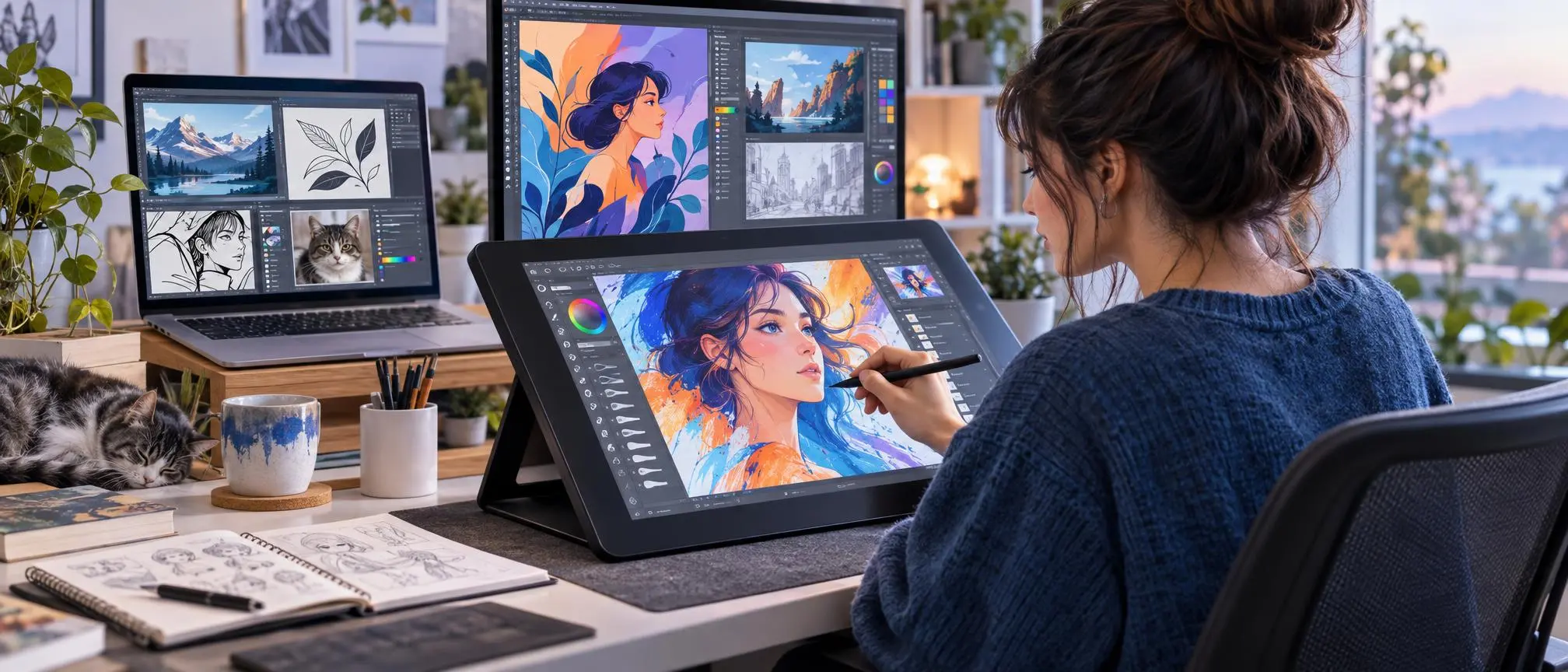

Why pay for art? You don’t need to pay to draw digitally. Whether you are a novice wanting to learn sketching, a student wanting to improve your illustrations, or an artist wanting a free alternative to a subscription-based app; there are plenty of apps which will get the job done. Finding the Best Free Drawing Software is the hard part.
Different programs are better suited for different artistic styles and forms of expression. Some are meant for digital painting, others for comics, or photo editing, or sketches. In this article, we are going to talk about the best free drawing software and what type of artist is best suited for that program.
Comparison of the Best Free Drawing Software
Here is a quick look at the top options:
| Software | Best For |
| Krita | Digital painting and illustration |
| Inkscape | Vector drawing and logos |
| GIMP | Image editing and creative artwork |
| MediBang Paint | Manga and comics |
| Sketchbook | Natural sketching |
| FireAlpaca | Lightweight digital drawing |
| MyPaint | Distraction-free painting |
| Paint.NET | Basic Windows drawing and editing |
| Adobe Fresco | Touch-focused drawing |
| ibisPaint | Mobile drawing |
Of course, your goals and artistic style will determine what program is best for you.
1. Krita — Best Overall Free Drawing Software
Krita is a free software designed for digital painting and illustration. It has tons of brushes, layers, blending modes, and other features that make it an attractive option for digital artists.
.It supports drawing tablets and has features for pressure sensitivity.
Krita is a great option for artists who want to move beyond basic sketching and aren’t willing to immediately pay for a premium software.
Best for: digital painting, illustration, comics, and concepts arts.
2. Ink scape — Best for Vector Drawing
For arts that involve logos, icons, diagrams, or any other scalable illustrations, Inkscape is a great option.
Inkscape is a vector graphics drawing software. Since vector graphics don’t contain pixels, you can resize the artwork without losing quality—unlike raster graphics—making them a great choice for web graphics and other printables.
If you want the best free drawing software for crisp, clean lines and edges, Inkscape is it. It has tons of path editing tools, as well as shape and text controls.
Best for: SVG graphics, logos, web and print graphics.
3. GIMP — Best for Drawing and Image Editing
GIMP is a powerful image editor, but people sometimes overlook that it has features for painting, drawing and other design activities. It is especially good for those that want a single application for image manipulation and drawing.
A free drawing application has a lot of assumptions built into it. If you are primarily looking for a painting application, you might want to look elsewhere.
Because of the assumptions built into the free drawing applications, many people find GIMP better suited for digital artwork.
Best for: Image editing, compositing, digital artwork, and mixed creative tasks.
4. MediBang Paint — Great for Manga and Comic Artists
MediBang Paint is perfect for anyone interested in creating manga, comics, or other character illustrations.
It has built-in features that complement a comic workflow.
MediBang Paint makes a lot of best free drawing applications lists mainly due to its clean and uncluttered interface. Because of this, people are drawn in and can start simple and build up as they get better.
Best for: Manga, comics, and other illustrations focused on character and line art.
5. Sketchbook — Best for a Natural Sketching Experience
Sketchbook is great for people that just want to put ideas on canvas quickly.
It has a clean interface and easy to access tools in comparison to other drawing applications. This allows people to put their ideas on canvas quickly and worry less about the details.
For the beginner, the workflow of Sketchbook makes it feel more inviting as it feels like a digital sketch pad. It uses pencils, pens, markers, and brushes to help users experiment with various styles without making the program complicated.
Ideal For: Beginners, quick sketches, concept work, and random doodles.
6. FireAlpaca – Lightweight and Beginner Friendly
If you’re looking for a piece of lightweight software that has a quick response time, FireAlpaca is for you.
Like most other programs, FireAlpaca’s basic tools include a brush and an eraser, as well as layers and selections.
If you’re looking for the best free digital art software and don’t want to dig through a lot of menus, FireAlpaca is easy to learn and will help you with your digital art skills.
Best for: Beginners, simple digital painting and illustrations.
7. MyPaint — Best for Distraction-Free Painting
MyPaint’s focus is to have a clear canvas and incorporate natural brushes for painting.
By eliminating the dozens of panels that other software have, MyPaint helps users focus more on their art.
MyPaint may not have all the features of a full-fledged professional software, but for a responsive digital canvas and painting tools, MyPaint is easy to use and a great option for a first time user.
Best for: Drawing, painting, and sketching.
8. Paint.NET — Good for Simple Windows Projects
Paint.NET is a basic program to edit images that sits between simple paint programs and more complex image editors.
Layers and effects are supported and most other editing tools are included as well.
It can be helpful for simple image editing for Windows users who do not need or want the extensive feature set of larger programs.
It is useful for quick edits and simple images and projects.
Best for: Basic drawing, editing, and windows projects.
9. Adobe Fresco — Strong Choice for Touch-Based Artists
Adobe Fresco supports drawing and painting, and offers a touch/stylus optimized interface.
It is a good choice for artists that enjoy using a stylus and drawing or painting directly on a touch screen.
This program can be good for drawing and painting, and for touch users, but before using any freemium program for drawing and painting, it is best to check the features of the free version.
Best for: Touch/stylus, painting, and drawing.
10. ibisPaint — Best for Drawing on Mobile Devices
Furthermore, because illustrators do much of their work on tablets and phones, ibis Paint caters specifically to mobile creators by offering essential tools like layers, brushes, and stabilization
Best for: Mobile illustrating.
For mobile users, ibisPaint is one of the few free options for drawing applications.
It has the potential to be useful for many things. Character art, casual sketching, and anime-style drawing to name a few. Also, artists that don’t like to be chained to their desk, can take their drawing with them.
It’s Best For: Mobile art, anime-style drawing, character design.
How To Choose The Best Free Drawing Software
Furthermore, it’s also important to consider your device.
First, you need to determine the type of art you want to create.
Krita might be a better option than Inkscape for digital painting. For logo design, Inkscape might be a better choice than Krita. For comic drawing, MediBang Paint might be a better choice than GIMP.
Some programs are better for desktop use, and others for tablet use. For example, GIMP is better for desktop, and MediBang Paint is better for tablet.
It’s also important to consider your experience level. Beginners might improve faster with simpler software and experienced users might prefer more advanced software with more control.
Long story short, the best free drawing software is the one you are most comfortable with and can create with ease.
Important Features to Look For
For a drawing application to be useful, it must have brushes with varying strokes. Different strokes give a wider range of creativity and options.
The quality of the brushes should be a priority if you want to create paintings rather than compositions of shapes.
Layers
Layers are used to separate sections of a drawing, and can be used to separate things like sketches and line art from colors and shadows.
Drawing Tablet Support
Though not necessarily important, having good drawing tablet support can improve your drawing experience.
Having pressure sensitivity can allow strokes to respond to how firmly you press the stylus.
File Compatibility
You should check if the application can export image files in formats you use often, like JPG and PNG.
You should check the performance of the program on your computer, and see if it can run the program smoothly.
Interface
You should be able to figure out how to do the things you need to do quickly and easily without feeling overwhelmed by the number of features.
There should be a decent user community so help finding solutions to problems you have is readily available.
For beginners, you should consider tutorials, simplicity and comfort.
You don’t need to be comfortable with every single feature of the program to be able to use it. Sketchbook and FireAlpaca, for example, are simple to start using, and Krita has a steeper learning curve.
Brushes, layers, erasers, and a few basic shortcuts are things to focus on first because they are relatively program independent.
Best Free Drawing Software for Beginners
Beginners should prioritize simplicity, tutorials, and a comfortable interface.
Sketchbook and FireAlpaca are relatively approachable places to start, while Krita provides much more room to grow once you become familiar with basic digital drawing concepts.
When you are starting out, you do not need to learn every button.
Focus first on brushes, layers, erasers, selections, canvas controls, and a few keyboard shortcuts. Those basic skills transfer to most digital art programs.
Best Free Drawing Software for Experienced Artists
Experienced artists want to see tablet and program integration, as well as brush control, layers, and overall program optimization for workflow and file management.
Krita has great potential for illustration and painting. Inkscape is great for vectors. Also, GIMP is great for projects that require a combination of drawing and editing.
In general, you should look for the program that fits your workflow.
Frequently Asked Question
What is the Best Free Drawing Software?
Krita is a wonderful option for digital painting and illustration. As mentioned before, the right program is relative to your preferred workflow.
What Free Drawing Software is Best for Beginners?
Sketchbook and FireAlpaca may feel simpler for beginners, while Krita has more advanced features that can be learned as skill and experience grows.
Can I Use Free Drawing Software for Professional Work?
Yes, absolutely! Free programs can be used for serious and professional work as long as they have brushes, features, file formats, layers, and support for your tablet and your workflow.
The skill and method of an artist plays a more important role than the price of software in determining the final quality of a digital artwork.
What is the Best Free Program for Vector Illustration?
I use Inkscape for creating vector logos, icons, diagrams, typography, and illustrations.
Vector artwork is scale-able. This means vector illustrations can be resized without loss of quality.
What is Best for Manga and Comics?
MediBang Paint and Krita are some of the options that facilitate the drawing of Manga and Comics.
Your preference for a particular interface and features would better determine the better of the two apps for your use.
Final Thoughts
The best free drawing software is the one that fits your needs and enables you spend more time doing what you love, creating art instead of struggling to learn how to use software.
There are options for painting, sketching, creating comics, doing graphic design and editing, all for free. For more specific creations like illustrations for children or comics, MediBang Paint is the way to go. Sketchbook and FireAlpaca have simple and easy to use features and offer lots of choices for tools.
The rise of opinions regarding the best software for various digital arts has risen but the information is usually biased. Choose software based on your needs instead of popularity and give it a real test run.