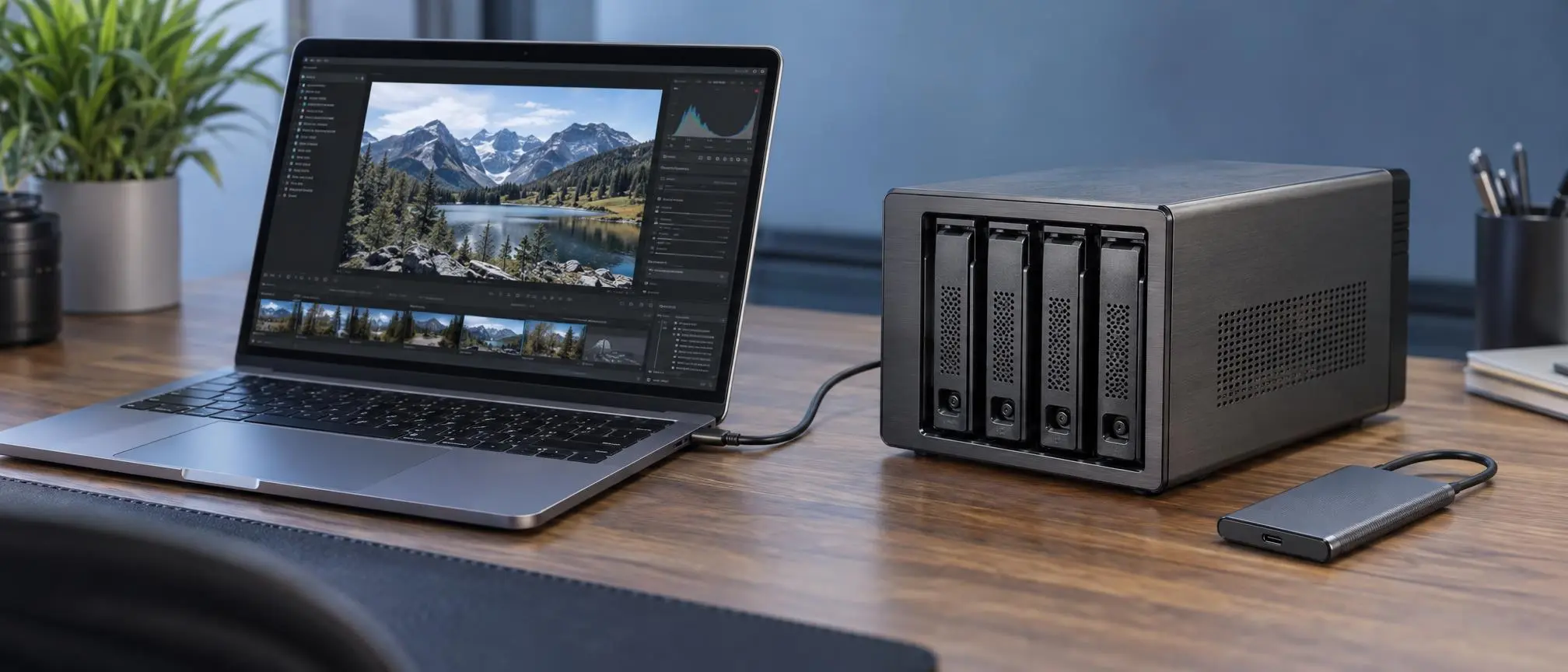

Running low on storage space is an issue that most people have experienced, making a DAS drive an essential solution for managing large files. When your computer has a lot of important files, high-resolution video and photo collections, and/or large application installations, running out of storage space is incredibly frustrating. Fortunately, there are many types of storage solutions available to assist in managing your data, so you do not need to replace your entire computer.
DAS (Direct Attached Storage) is one option for your data needs. This type of storage connects directly to your computer or server.
DAS drives, on the other hand, are connected directly to the user’s computer via a local storage interface. Due to its simplicity, DAS is often utilized by users who have a single PC, by professionals in creative industries, and by organizations in general.
No matter if you’re looking for more space to store data, a reliable way to create backups of your computer’s hard drive locally, or quick access to large files, having some knowledge about how a Direct Attached Storage (DAS) drive functions will allow you to make a more educated decision.
This article is about direct-attached storage, its forms, pros/cons, and how it differs from other storage methods.
What Is a DAS Drive?
A DAS drive is a storage device that connects directly to a computer or server rather than via a storage network.
DAS stands for Direct Attached Storage.
The description of the way in which a host computer accesses storage is the focus here. It does not identify a specific manufacturer, storage capacity (disk size) or technology.
A standard DAS unit could potentially include a external hard drive, portable solid state drive, internally mounted storage unit, or multiple bay storage enclosure.
An example of direct-attached storage is when you plug an external hard drive into your laptop via a USB cable.
You will be able to store, view, move, and remove your files once the computer has recognized the external hard drive.
A Direct Attached Storage (DAS) drive does not offer a shared network storage service like a Network Attached Storage (NAS) device.
DAS is well suited for people who wish to directly access their files and do not want to set up an additional network storage device.
How Does a DAS Drive Work?
A DAS (Direct Attached Storage) device establishes a connection directly with the computer it is connected to.
The type of connection will depend on your hardware. For example, some devices connect via USB, USB-C, Thunderbolt, SATA, etc.
As soon as you attach the storage device to your computer, the operating system of your computer will communicate with the storage controller.
Once the system has identified the storage volume, you will be able to view and manage your files using a file manager or another program.
For instance, if you’re using a Windows based system, an external DAS device will appear as a separate drive in your file manager (File Explorer).
On macOS, a properly mounted storage volume can appear in Finder.
DAS drives’ performance is based on many things. Some include how the drive works (technology), how fast it can connect to other devices, what the controller can do, and what type of job it has to do.
Basic Working Process
- Connect the storage device to a compatible computer.
- The operating system detects the connected hardware.
- The storage controller manages communication with the drive.
- The computer mounts the available storage volume.
- Users can read, write, and organize their files.
Many of the external hardware devices will require a separate power supply. On the other hand, many of the portable versions can be powered via the same cable used for connecting them.
Types of DAS Drive Storage
The various types of DAS drive solutions will be based upon the specific storage needs.
To help you make the right choice of hardware for your system, it is important to understand the different types of hardware available.
External Hard Disk Drives
External HDDs use spinning magnetic disks to store information.
They typically connect to your computer via USB, providing a large amount of storage space at a very reasonable price.
An external hard disk based DAS device may also provide storage for photos, documents, video and backup files.
However, in general, mechanical hard drives provide slower access to data than solid-state drives.
External Solid-State Drives
External SSDs use flash memory rather than moving mechanical components.
They usually have quicker random access to data and are more resistant to physical movements than typical HDDs.
An SSD based DAS (direct attached storage) unit can be used to move big files, create and edit video/audio projects, and move data from one computer to another as long as both computers are compatible.
Actual transfer speeds depend on both the SSD and the interface used.
Multi-Bay DAS Enclosures
A multi-bay enclosure can hold several hard drives or solid-state drives.
These systems enable users to increase their storage capabilities through the installation of several compatible disk drives.
Models can provide RAID support for performance, reliability, and/or storage capacity management.
A multi-bay DAS drive setup may be especially helpful to photographers, video editors, and small business owners who are dealing with a significant amount of local data.
Internal Direct Attached Storage
Internal storage devices also fall under the DAS category.
SATA solid state drives (SSDs), inside hard disk drives (HDDs), and non-volatile memory express solid state drives (NVMe SSDs) that are plugged into the system are all examples.
While many individuals connect DAS to external enclosures, its broader scope also incorporates internal drives.
Main Benefits of a DAS Drive
The benefits of using a DAS (Direct Attached Storage) device are numerous, especially if you have a need to store data on only one computer.
Simple Installation
One of the biggest benefits is straightforward setup.
Many external storage devices work after connecting them to a compatible port.
Usually, there is no need to configure a storage server, network shares, or complex network permissions.
Strong Local Performance
The performance of a DAS drive is typically very good due to the direct communication between the storage device and the computer.
There is no separate storage network to traverse.
However, the fact that you have a direct connection does not mean your speed will be faster than all other NAS systems.
A fast NAS with high-speed networking may outperform a slow USB hard drive.
Affordable Storage Expansion
Direct-attached storage can provide a cost effective solution to expand your existing storage capabilities.
Basic external drives do not use the networking parts or self-contained OS environments found in many NAS systems.
Greater Local Control
The user can use a DAS drive to control all local storage devices on the user’s computer.
They can organize files, configure supported permissions and enable the correct encryption tools.
Local connections do not provide protection for stored data from malware or other types of unauthorized access.
Useful Portability
External drives are portable and can be disconnected to move from one device to another as long as both devices support the drive.
Users that have to use multiple computers, or would like to obtain physical copies of some important documents will find this to be extremely useful.
Disadvantages of a DAS Drive
A DAS drive may have many benefits, but it is not always the best choice for all applications.
Limited Sharing
Traditional DAS storage connects directly to a specific host.
Other computers cannot individually access the device using a storage network.
The host computer has the ability to share files across a network, however, sharing of files across a network requires additional setup and will only be possible as long as the host computer is accessible.
Limited Scalability
The ability to expand storage is determined by the number of available ports, the size of the device containing the ports, and if the existing equipment can work with the new components.
If your organization manages a large number of users, then it might make sense for you to use a centralized storage solution.
Dependency on the Host
A DAS drive normally depends on its connected computer for data access.
Even if the computer where the file resides stops functioning, access to the file could be lost even though the hard drive (or other type of storage) is still operational.
Risk of Data Loss
Direct Attached Storage is susceptible to many threats including: direct failure of hardware components, accidental deletion of data, attack from malware, and physical damage.
Using multiple disks does not automatically eliminate these risks.
A separate, tested backup strategy remains essential.
DAS Drive vs NAS: Key Differences
Understanding the differences between a DAS drive and Network Attached Storage (NAS) is important when choosing storage equipment.
DAS connects directly to a computer, while NAS provides storage services over a network.
| Feature | DAS | NAS |
| Full Form | Direct Attached Storage | Network Attached Storage |
| Connection | Direct storage interface | Network connection |
| Primary Access | Connected host computer | Multiple network clients |
| Setup | Usually simple | Requires network configuration |
| File Sharing | Through host if configured | Built for network sharing |
| Performance | Depends on local drive and interface | Depends on disks and network |
| Typical Cost | Often lower for basic setups | Often higher for dedicated appliances |
| Best Use | Local storage and backups | Shared files and collaboration |
| Remote Access | Requires additional configuration | Supported on many models |
Which Storage Option Is Better?
The use of a DAS drive is frequently the most suitable option for providing additional storage space to an individual user or workstation.
When multiple devices require ongoing access to the same file, NAS is generally a better choice.
For example, a freelance photographer working on one computer may prefer DAS.
Multiple employee agencies that work on collaborative projects can use NAS to help manage those projects.
The ideal solution will ultimately be based upon its accessibility, performance capabilities, budgetary constraints, and managerial needs.
DAS Drive vs External Hard Drive
Beginner’s often ask what makes a DAS (Direct Attached Storage) different than an External Hard Drive.
An external hard drive connected directly to a computer is one example of DAS.
However, DAS is a broader storage category.
It includes internal drives, external SSDs, and multi-drive enclosures.
An external hard drive is a tangible object, but direct attached storage (DAS) is a way of connecting that object.
Therefore, these terms overlap but are not completely interchangeable.
Common Uses of DAS Storage
A DAS drive can support many everyday computing activities.
Personal File Storage
The home user is able to save their document files, family photos, internet downloaded files, and other forms of personal media.
This helps free space on their computers’ internal drives.
Video Editing
Content creators regularly work with large video files.
The quickness of a DAS drive makes it easy to have a fast way to store your work on your own computer so that you can edit, use raw footage from your camera, and then export your completed video.
SSD performance and interface bandwidth should be considered when selecting an editing system for intensive use.
Photography
External storage can be used by photographers to help with the organization of RAW image files, final projects, and archived materials.
A separate backup remains important for valuable photographs.
Local Backups
A DAS drive can serve as a destination for scheduled computer backups.
The user should occasionally check to ensure that the backup processes have been successful and that the data is able to be recovered.
Small Business Storage
DAS can be used by small businesses to save their locally based project files, records, and application data.
For collaborative environments, network-based storage may be more appropriate.
How to Choose the Right DAS Drive
Choosing a DAS drive involves much more than simply selecting the largest possible storage capacity.
Consider the following factors before purchasing.
Storage Capacity
Estimate how much data you currently have and how quickly it is growing.
Documents use a small amount of memory, but large files (video projects, game collections) may use many hundreds of gigabytes.
Choose a size that will accommodate your current requirements plus allow some flexibility for expansion.
HDD or SSD
HDDs tend to provide lower cost per unit of storage than SSDs, which makes them ideal for archiving purposes as well as for storing large amounts of data such as video, audio, etc.
SSDs often provide better responsiveness and higher transfer speeds.
For frequently accessed projects, an SSD may be the more practical option.
Connection Interface
A DAS drive must be compatible with your computer’s available ports.
USB-C describes a connector shape, not a guaranteed transfer speed.
You need to check what version of USB or Thunderbolt is used in both your computer and the external storage device.
Build Quality
When considering the use of portable equipment, it is important to think about how well the equipment will be protected from damage, as well as the quality of its cables and any other ways that it may be physically protected.
The quality of cooling and compatibility of the drives used with the enclosure should be taken into account when choosing a multi-bay desktop enclosure.
Budget and Warranty
Compare the entire cost, which includes any required drives, cables, or power adapters. While you may be tempted to focus primarily on the cost of an item when shopping—similar to when exploring other budget tech and affordable gadgets—always consider the product’s warranty terms and manufacturer support before making your decision.
WordPress Editor ke liye Instruction
How to Set Up a DAS Drive
Setting up a DAS Drive can be simple, but the process may differ depending on the specific model.
- Connect the device using a compatible cable.
- Attach external power if required.
- Allow the computer to detect the storage device.
- Check the available volume in your file manager or disk management utility.
- Initialize or format the drive only when necessary.
- Choose a suitable file system for your operating system and intended use.
- Transfer files and configure backups as needed.
Important: Formatting a storage volume will remove all data currently stored on the device. Make sure to double check that you are formatting the correct device prior to completing the process.
When you want to remove a Direct Attached Storage (DAS) device from your computer, if possible, use either the Safe Removal feature provided by your operating system, or the Eject function of your DAS.
This reduces the risk of interrupting active file transfers.
Common DAS Drive Problems and Solutions
Occasionally, a DAS drive may not work as expected.
Drive Not Detected
Check the connection cable, available power, and computer port.
Try another compatible cable or port when possible.
If the device appears in disk management but not in the file manager, it may have a missing drive letter, unsupported file system, or another configuration issue.
Avoid initializing or formatting an unfamiliar volume containing valuable data
Slow Transfer Speeds
Slow performance may occur due to a mechanical hard drive, restricted interface bandwidth, defective cables, or a large number of smaller files.
Confirm your device’s capabilities and verify that you are connected at a supported data rate.
Unexpected Disconnections
Loose cables, insufficient power, and hardware faults can interrupt access.
If disconnects persist, suspend crucial transfers and conduct a thorough investigation prior to using the equipment.
Unusual Mechanical Noises
Clicking or grinding noises from an HDD can indicate mechanical trouble.
Do not perform unnecessary writes and get help from a professional data recovery service when your critical data may be lost.
Is a DAS Drive Good for Backup?
A DAS (Direct Attached Storage) device can be a great place to locally store your backups. However, having a DAS device doesn’t necessarily mean that you’re protected from losing your data.
For example, having the only copy of your photos stored on an external hard drive is considered storage and does not constitute a full backup plan.
- A more reliable approach is the 3-2-1 backup principle:
- Maintain three copies of important information.
- Use two appropriate storage media or systems.
- Keep one copy off-site.
Other types of backup methods, such as cloud storage and external drive backups, will help facilitate this method.
To help prevent damage from ransomware, look into creating backups that cannot be modified by an unapproved user (disconnected) or have some form of protection against modification.
The Future of DAS Storage
As direct attached storage continues to advance with the introduction of new high-speed interfaces and advanced solid-state technology, it is rapidly changing the way businesses manage their data.
The modern high-performance solid state drive (SSD) can handle the requirements of many types of computer usage including video editing, transferring large amounts of data, and handling intensive computing tasks.
High-capacity HDDs are still relevant when the cost of bulk storage is more important than achieving maximum performance.
DAS drives will continue to be useful as long as there is an option for local storage that offers convenience, simplicity, and direct control.
But, as well as being a place where we can collaborate with colleagues, work from home or manage all our devices remotely, network storage and cloud services are also going to continue to play a major role in how we operate.
Frequently Asked Questions (FAQs)
What does DAS stand for in storage?
DAS is an acronym for “direct-attached storage.” It is a type of storage device that connects directly to a computer system or server, rather than being accessed via a separate storage area network (SAN).
What is a DAS drive used for?
Direct-attached storage (DAS) is a common way to store files, edit video or audio, create a backup on your PC, increase the size of your PC’s memory, and save projects that require a lot of space.
Is DAS faster than NAS?
In addition to being able to offer high local performance and short response times, the actual performance will depend upon the types of storage device used, how they are connected to the computer system (i.e., interface), the capacity of the network in terms of bandwidth and latency, and the type of work being performed by the system.
Can a DAS drive connect to multiple computers?
Traditional DAS is physically connected to only one server (host) at a time. Although multiple servers (hosts) can share data from the first server (host) via its connection to the traditional DAS, it would require additional hardware support for both of the servers (hosts) to be able to access the traditional DAS at the same time.
Does a DAS drive need the internet?
No, Direct Attached Storage (DAS) can be accessed locally without being connected to the Internet.
Can I use DAS for gaming?
Yes, you can use a compatible DAS (direct attached storage) unit to store your game files and/or game libraries. How quickly your game loads and performs will be determined by the type of DAS drive you use, how it is connected to your computer, and the system requirements of the game itself.
Is DAS better than an external SSD?
An exterior SSD directly linked to a PC is also an example of DAS. Both phrases refer to various characteristics of the same type of storage setup.
Can DAS support RAID?
Yes, some multi-bay DAS enclosures can have RAID configured. Depending upon the type of RAID used, RAID can provide improved performance or increased fault tolerance. However, RAID does not replace backups.
Conclusion
A DAS Drive is an affordable way to provide you with quick access to your files without having to build a network-attached storage (NAS) system.
Direct Attached Storage (DAS) provides a solution for daily computer tasks, as well as providing a way to back-up files locally. It is available in many forms ranging from simple external hard drives to more complex multi-bay enclosures.
The most significant advantages of this product are its simple setup process, various options for capacity, and possible high-performance locally.
On the other hand, the fact that NAS has limited ability to share independently and relies heavily on its host system indicates that it might be better suited for certain environments.
When selecting a DAS drive, think about what size of storage you need, how hard you will be working the drive, what kind of connections it will require, whether you have a backup strategy in place, and how much money you can spend.
Direct Attached Storage will be able to maintain its reliability within your overall computer system with the correct mixture of hardware and appropriate data management.